Windows LAPS and MDM: How Local Admin Password Management Works

Windows LAPS (Local Administrator Password Solution) is a built-in Windows feature that automatically manages and rotates the password for a local administrator account and backs it up to a central directory controlled by the IT team. It solves a specific and dangerous problem: the shared, static local admin password that is identical across every device in an organization, which is one of the most common footholds for lateral movement in a breach.
This post explains what Windows LAPS is, how it works, how it is managed through modern device management (Microsoft Intune and the Windows LAPS Configuration Service Provider), and where it fits in the wider picture of local administrator and privilege management across a mixed device fleet. It is written for IT and security teams standing up or reviewing their local admin password strategy in 2026.
One naming clarification up front, because it is the single most common point of confusion. There are two things called LAPS. The original standalone tool, now called legacy Microsoft LAPS, was an add-on installed through a separate MSI package. The current one, Windows LAPS, is built directly into the operating system. They are different products, and the legacy one is deprecated. The difference is covered in detail below.
The problem Windows LAPS solves
Every Windows device ships with a built-in local administrator account. In many organizations, that account is given the same password across the entire fleet, often set once during imaging and never changed. This is convenient for the help desk and catastrophic for security.
When one device is compromised, an attacker who recovers that shared local admin password (or its hash) can reuse it against every other device that shares it. This is the basis of pass-the-hash and lateral-traversal attacks: the attacker moves sideways across the network, device to device, using the one credential that unlocks all of them. A single compromised laptop becomes a path to the whole fleet.
Windows LAPS breaks this pattern by giving every device a unique, randomized local admin password, rotating it automatically on a schedule, and storing each password securely in a central directory accessible only to authorized administrators. A device compromise no longer hands the attacker a master key, because there is no master key. Each password unlocks exactly one device.
How Windows LAPS works
Windows LAPS operates through a straightforward cycle that runs on each managed device. Understanding the flow clarifies both what it protects and what it does not.
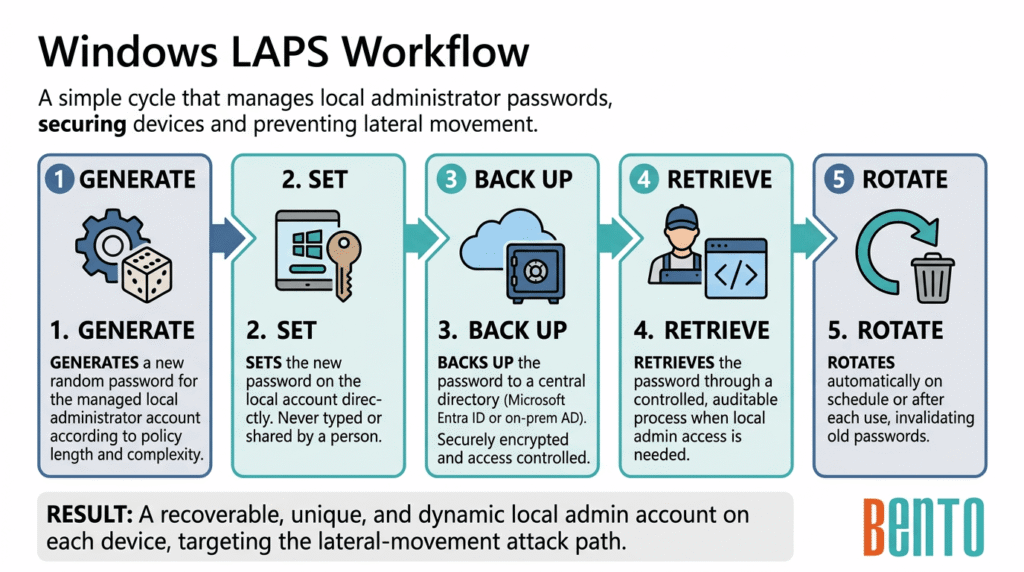
1. Generate. According to the policy schedule, Windows LAPS generates a new random password for the device’s managed local administrator account that meets the policy-defined length and complexity requirements.
2. Set. The feature sets the new password on the local account directly on the device. The password never needs to be typed, shared, or known by a person during normal operation.
3. Back up. Windows LAPS backs up the new password to a central directory: either Microsoft Entra ID (the cloud identity platform, formerly Azure Active Directory) or on-premises Windows Server Active Directory. The password is stored securely, with encryption and access control, so only authorized administrators can read it.
4. Retrieve. When a technician genuinely needs local admin access to a device (a broken network join, an offline recovery, or a support scenario), they retrieve the device’s current password from the directory through a controlled, auditable process.
5. Rotate. The password rotates automatically on the policy schedule. It can also rotate automatically after each use, so a password retrieved for one support session is invalidated afterward and cannot be reused.
The result is a local admin account that is always recoverable by the right people, never shared as a static secret, and unique to each device. The design directly targets the lateral-movement attack path.
Where Windows LAPS stores passwords: Entra ID or Active Directory
Windows LAPS backs up passwords to one of two directories, and the choice usually follows the organization’s existing identity model rather than being a separate decision.
Microsoft Entra ID is the cloud backup target, suited to organizations whose devices are Microsoft Entra joined. Passwords are secured by the Entra role-based access control model, and administrators can retrieve them via the Entra admin center, the Intune admin center, or programmatically. This is the path for cloud-first and hybrid organizations managing devices through Intune. Windows LAPS with Entra ID reached general availability in October 2023.
Windows Server Active Directory is the on-premises backup target, suited to organizations with domain-joined devices and an existing Active Directory. Passwords are secured through directory access control lists, with optional password encryption and password history for organizations that need them. This is the path for organizations that remain on-premises or run a hybrid model with a significant AD footprint.
The two targets are not mutually exclusive within an organization; a given device backs up to one directory according to the policy applied to it. The licensing follows the target: backing up to Active Directory needs no additional license, and backing up to Entra ID requires a Microsoft Entra ID Free or higher license.
How MDM manages Windows LAPS: the Intune path
Windows LAPS can be configured through Group Policy in traditional domain environments, but in modern environments, the preferred management path is Mobile Device Management (MDM), specifically Microsoft Intune, using the Windows LAPS Configuration Service Provider (CSP).
A Configuration Service Provider is the interface that an MDM uses to configure Windows settings. The Windows LAPS CSP exposes the LAPS controls (backup directory, password length and complexity, rotation schedule, account name, post-authentication actions) so that an MDM policy can set them centrally across the fleet. When IT assigns a Windows LAPS policy in Intune, that policy configures the CSP on each targeted device.
One behavior is important to understand because it prevents a common class of conflict: the CSP-based policy from Intune takes precedence over other LAPS configuration sources. If a device also receives LAPS settings from a Group Policy Object or a legacy Microsoft LAPS configuration, the Intune CSP policy takes precedence. This precedence is deliberate and means that an organization migrating to Intune-managed LAPS should retire the older configuration sources rather than leave them running in parallel.
Through the Intune admin center, IT can assign the LAPS policy, view details of managed local admin accounts, and manually rotate a device’s password outside the scheduled rotation when a security event requires it. Managing LAPS this way standardizes rotation across the fleet, reduces the risk of lateral movement, and provides the help desk with a controlled, auditable recovery path. Deploying LAPS through Intune requires a Microsoft Intune Plan 1 license, plus Entra ID Free or higher if Entra is the backup directory.
[Internal link: “Windows Autopilot vs traditional imaging” → https://blog.bentomdm.com/en/windows-autopilot-vs-traditional-imaging]
Legacy Microsoft LAPS vs Windows LAPS: what changed
The naming overlap causes real confusion, so it is worth being precise. Legacy Microsoft LAPS was the original solution: a separate tool installed on each device through an MSI package, backing up passwords only to on-premises Active Directory. Windows LAPS is the current feature, built into the operating system, with capabilities the legacy tool never had.
Microsoft deprecated legacy Microsoft LAPS as of Windows 11 23H2. On Windows 11 23H2 and later, installation of the legacy MSI package is blocked, and Microsoft no longer makes code changes to the legacy product. Legacy Microsoft LAPS remains supported only on older Windows versions where it was already in use, and only until those versions reach their normal end of support. The clear direction is to migrate to Windows LAPS.
The table below summarizes the practical differences that matter when deciding whether to migrate.
| Factor | Legacy Microsoft LAPS | Windows LAPS |
|---|---|---|
| Installation | Separate MSI package per device | Built into the operating system |
| Backup directory | On-premises Active Directory only | Entra ID or Active Directory |
| MDM management | Not designed for MDM | Intune via the Windows LAPS CSP |
| Password encryption | Not available | Available for AD-stored passwords |
| Password history | Not available | Available for AD-stored passwords |
| Automatic account management | Not available | Available on Windows 11 24H2 and later |
| Support status | Deprecated; MSI blocked on 23H2+ | Current and actively developed |
For any organization still running legacy Microsoft LAPS, the migration to Windows LAPS is the recommended path. The two can coexist temporarily only under controlled conditions, managing different local accounts, but where a Windows LAPS policy is present on a device, the legacy policy is ignored. Running both against the same account is a supported-configuration hazard and should be avoided.
Automatic account management: what Windows 11 24H2 added
A meaningful capability arrived with Windows 11 24H2: automatic account management. In earlier Windows versions, Windows LAPS could only manage a local administrator account that already existed on the device, so creating that account had to be handled separately during provisioning.
Starting with Windows 11 24H2, Windows LAPS can manage the built-in Administrator account, or create and then manage a new custom local administrator account on its own. This removes a provisioning step and closes a gap, because it means the account LAPS manages does not have to be pre-staged by another process. For organizations standardizing on Windows LAPS now, prioritizing Windows 11 and specifically 24H2 where possible makes the deployment cleaner.
Windows LAPS best practices
A LAPS deployment is only as strong as the controls around it. Several practices distinguish a genuinely risk-reducing rollout from one that appears well-configured but leaves gaps.
Restrict who can read passwords. The security of LAPS depends entirely on who can retrieve the stored passwords. Scope retrieval access tightly through the Entra role-based access control model or Active Directory access control lists, and ideally gate it further through a just-in-time elevation process so that even authorized staff hold the access only when they need it.
Enable rotation after use. Configure the password to rotate automatically after each retrieval, so a password pulled for one support session cannot be reused later. This limits the window in which any retrieved password is valid.
Retire conflicting policy sources. When migrating to Intune-managed LAPS, remove the old Group Policy LAPS settings and decommission the legacy Microsoft LAPS, rather than leaving them running alongside the new policy. The Intune CSP policy takes precedence, but leaving stale sources in place invites confusion and troubleshooting difficulty.
Audit retrieval. Enable and review audit logging for password retrieval, so every access to a stored local admin password is recorded. This turns LAPS from a control into an auditable control, as compliance frameworks expect.
Confirm device eligibility before assignment. Not every device fully supports Windows LAPS, particularly those missing recent updates. Run a compatibility check before assigning the policy broadly, and monitor Intune reports and event logs during the pilot phase to catch incompatible systems early.
Windows LAPS and cross-platform fleets
Windows LAPS is a Microsoft feature for Windows devices, managed through Microsoft Intune. It is the right tool for managing local administrator passwords across a Windows fleet, and this guide recommends adopting it. It is important to be clear about the scope: Windows LAPS is specific to Windows and is a Microsoft and Intune capability, not something a third-party MDM provides in its place.
For organizations running a single-platform Windows environment managed entirely through Intune, Windows LAPS sits directly within that stack. For organizations running a mixed fleet across Android, iOS, macOS, and Windows, the broader question is how local administrator and privilege management are handled consistently across platforms, since each operating system approaches local accounts differently. On macOS, for example, Intune introduced its own LAPS-style local account management for the Mac admin account, a separate mechanism from Windows LAPS.
Cross-platform MDMs, including Bento MDM, manage devices across Android, iOS, macOS, and Windows from one console, covering enrollment, configuration, security policy enforcement, and compliance monitoring across the fleet. Local administrator password management on Windows is delivered through Windows LAPS and Intune, as described above; a cross-platform MDM is the layer that keeps the rest of the multi-platform fleet consistent alongside them. The honest picture is that Windows LAPS owns the Windows local-admin-password job, and a cross-platform MDM owns the broader multi-platform management around it.
Frequently asked questions
Windows LAPS (Local Administrator Password Solution) is a built-in Windows feature that automatically manages and rotates the password of a local administrator account on a device, then backs up that password to Microsoft Entra ID or on-premises Windows Server Active Directory. It gives every device a unique, regularly rotated local admin password, which protects against pass-the-hash and lateral-traversal attacks that exploit shared static passwords.
Legacy Microsoft LAPS is the original standalone tool, installed on each device through a separate MSI package, backing up passwords only to on-premises Active Directory. Windows LAPS is a built-in feature that backs up to Entra ID or Active Directory, is managed through Intune, and supports password encryption, password history, and automatic account management. Microsoft deprecated legacy Microsoft LAPS as of Windows 11 23H2 and blocks its MSI installation on newer versions.
Only in a limited sense. Legacy Microsoft LAPS is deprecated as of Windows 11 23H2; its MSI package is blocked from installing on Windows 11 23H2 and later, and Microsoft no longer makes code changes to it. It remains supported only on older Windows versions where it was already deployed, and only until those versions reach their normal end of support. Microsoft recommends migrating to Windows LAPS.
Microsoft Intune manages Windows LAPS through the Windows LAPS Configuration Service Provider (CSP). IT assigns a LAPS policy in the Intune admin center, which configures the backup directory, password length and complexity, rotation schedule, and account settings on each targeted device. The Intune CSP policy takes precedence over Group Policy and legacy LAPS sources. Deploying LAPS through Intune requires a Microsoft Intune Plan 1 license, plus Entra ID Free or higher when Entra is the backup directory.
Yes. Windows LAPS backs up passwords to Microsoft Entra ID for Entra-joined devices, securing them through the Entra role-based access control model. Windows LAPS with Entra ID and Intune reached general availability in October 2023. Backing up to Entra ID requires a Microsoft Entra ID Free or higher license; backing up to on-premises Active Directory requires no additional license.
The Windows LAPS feature itself is free and included in supported Windows platforms. Backing up passwords to Active Directory requires no additional license. Backing up to Microsoft Entra ID requires a Microsoft Entra ID Free or higher license. Managing LAPS through Microsoft Intune requires a Microsoft Intune Plan 1 license. There is no separate standalone Windows LAPS license to purchase.
On Windows 11 24H2 and later, yes. Automatic account management lets Windows LAPS manage the built-in Administrator account or create and manage a new custom local admin account on its own. On earlier Windows versions, Windows LAPS can only manage a local admin account that already exists on the device, so account creation must be handled separately during provisioning.
Windows LAPS protects against pass-the-hash and lateral-traversal attacks that exploit shared, static local administrator passwords. When every device has the same local admin password, compromising one device gives an attacker a credential that works on all devices, enabling lateral movement across the network. By giving each device a unique, automatically rotated password, Windows LAPS removes that shared credential and confines a local admin compromise to a single device.

Related Articles


