Apple Business Manager and MDM: How Automated Device Enrollment Works

Apple Business Manager and an MDM sit on either side of every corporate Apple deployment. Apple Business Manager is the free portal that ties your organization to Apple: it holds the devices you own, the app licenses you buy, and the identities of your managed users. The MDM is the paid service that actually configures and enforces policy on those devices. Automated Device Enrollment (ADE) is the mechanism that connects them and ensures that a device shipped to the user arrives already enrolled, supervised, and configured on first boot. This post explains what each of those layers does and how they work together in practice.
One naming update matters upfront. In April 2026, Apple launched Apple Business, a consolidated platform that replaced the separate Apple Business Manager, Apple Business Essentials, and Apple Business Connect services. Most search traffic and vendor documentation still use “Apple Business Manager” (ABM), so this post uses both terms. The current product name is Apple Business. The legacy name and the still-common search term is Apple Business Manager. They refer to the same underlying service across the transition.
Three quick disambiguations. Mobile Device Management (MDM) here refers to the discipline and software for managing device fleets, not to Master Data Management, an unrelated data-governance category that shares the acronym. Apple Business is a free portal for provisioning and licensing, not an MDM by itself. And this post covers how Apple Business, an MDM, and ADE fit together, not the broader question of which Apple MDM to buy, which is covered separately.
What Apple Business Manager (now Apple Business) is
Apple Business is Apple’s free web portal for organizations that deploy Apple hardware. It is the source of truth for which devices belong to the organization, which app licenses the organization has purchased, and which Managed Apple Accounts the organization has issued to employees. Any organization that buys Apple devices at scale needs it.
The three functions: ADE, Apps and Books, and Managed Apple Accounts
Apple Business does three things that matter for MDM.
Automated Device Enrollment (ADE) is the mechanism that binds a device to your MDM at first boot. When a user unboxes an eligible Mac, iPhone, iPad, Apple TV, or Apple Vision Pro and connects it to Wi-Fi during Setup Assistant, the device contacts Apple’s activation servers, discovers that it is assigned to your MDM through Apple Business, and enrolls itself automatically. The user does nothing. The device arrives supervised, managed, and configured.
Apps and Books, formerly known as the Volume Purchase Program (VPP), handles app licensing and distribution. The organization purchases App Store app licenses through Apps and Books, and the MDM then assigns those licenses to devices or users. The licenses are reallocatable, so a license freed by a departed employee can be reassigned to the next hire.
Managed Apple Accounts (formerly Managed Apple IDs) are the identity layer. Each user in the organization gets a Managed Apple Account tied to Apple Business, distinct from any personal Apple Account they might also use. Managed Apple Accounts are how work iCloud storage, Continuity, and cross-device features are scoped to the organization.
What Apple Business is not
Apple Business is not an MDM. It does not push policies, install apps, enforce encryption, or produce compliance reports. Those functions belong to the MDM. Apple Business is the layer that enables MDM to operate effectively on Apple hardware by managing ownership, licensing, and identity. Every Apple deployment needs both.
What Automated Device Enrollment is
Automated Device Enrollment is Apple’s zero-touch enrollment mechanism for organizationally owned devices. When the user turns on a new or erased device that is assigned to the organization’s MDM through Apple Business, ADE runs during the Setup Assistant, and the device enrolls in management without any user or IT intervention. The device is then supervised, which unlocks a set of restrictions and controls that user-approved enrollment does not allow.
ADE supports iPad, iPhone, Mac, Apple TV, and Apple Vision Pro. It requires the device to be new or erased at first boot. Devices already in use can be added to Apple Business via Apple Configurator, but they must be erased before ADE takes effect. Once enrolled, the device carries the enrollment profile through subsequent erase-and-restore cycles, so a device wiped by IT re-enrolls automatically on the next Setup Assistant.
The distinction from user-approved enrollment is meaningful. User-approved enrollment is when a user manually installs a management profile. It is quicker to set up in ad hoc cases but does not provide supervision, and the user can remove the management profile at any time. ADE produces supervision, and the user cannot remove the management profile.
How ADE works: the flow from procurement to enrolled device
The end-to-end ADE flow has six practical steps. Getting each right is what makes deployment predictable at scale.
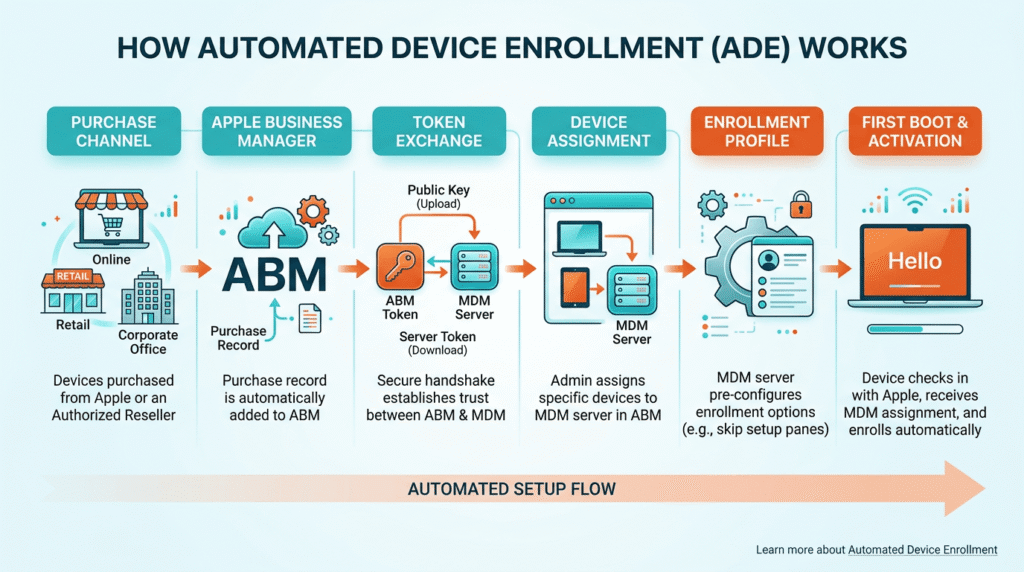
Step 1: Create the Apple Business account
Apple Business is free. An organization signs up at business.apple.com using a work email (not a personal Apple Account) and completes verification. Once the account is provisioned and an administrator role is assigned, the org can start configuring device management servers, users, and locations. This step is usually one-time.
Step 2: Buy through an eligible channel (or add via Apple Configurator)
For ADE to be automatic, devices have to come through an eligible channel: Apple directly, an Apple Authorized Reseller, or an eligible cellular carrier. The reseller’s Customer Number or the carrier’s ID is linked to the organization in Apple Business under Settings → Device Management Settings. Once linked, any device purchased through that reseller under the organization’s account appears automatically in Apple Business.
Devices bought at consumer retail, from a marketplace, or through a channel not linked to the organization do not automatically enter Apple Business. Those devices can be added later using Apple Configurator on a Mac, but that requires physical touch, wiping the device, and re-running Setup Assistant. Getting procurement right upfront is far cheaper than re-provisioning later.
Step 3: Link the MDM server in Apple Business
Every organization sets up one or more MDM server profiles in Apple Business. Each MDM server is represented by a token: a downloadable file that the organization uploads into the MDM’s Apple Business connection settings. The token establishes the trust relationship between Apple Business and the MDM. Tokens expire after one year and must be renewed on schedule, which is a common cause of mid-year enrollment failures if the calendar reminder is missed.
Organizations can maintain multiple MDM server profiles for different device types or regions. Apple Business supports default MDM server rules per device type (for example, iPhones to one MDM server, Macs to another) and per location.
Step 4: Assign devices to the MDM server
Once devices are in Apple Business and an MDM server is linked, devices are assigned to the MDM server. This can be manual (select devices, choose Assign Device Management, pick the MDM server) or automatic through assignment rules based on device type, purchase channel, or location. Assignment rules mean that new orders flow to the right MDM server without human intervention.
Step 5: Configure the enrollment profile in the MDM
The MDM defines what happens when an ADE device enrolls. This is the enrollment profile: which Setup Assistant panes are skipped, whether the device supervises automatically (it does with ADE), which Blueprint or configuration applies, whether the device requires user affinity, which apps install during setup, and which Managed Apple Account signs in.
Blueprints, a 2026 addition, are a way to package configurations, apps, and policies for a device or user. Assigning a Blueprint to a user means every device that user enrolls receives the corresponding configuration set. Assigning a Blueprint to a device (rather than a user) means the device gets a fixed configuration regardless of who uses it. Blueprints are the current recommended way to structure ADE configurations.
Step 6: Ship and power on
The device ships to the user, who opens the box, connects to Wi-Fi during the Setup Assistant, and the device enrolls itself. The user sees the organization’s Remote Management screen, accepts it (required by Apple’s UX and cannot be skipped), and proceeds through the configured Setup Assistant flow. When Setup Assistant completes, the device is supervised, managed, and configured. On Macs connected to Ethernet with Auto Advance enabled, even the Setup Assistant panes can be skipped, and the device boots straight to the login window.
How to add devices to Apple Business Manager
Adding devices is the most common Apple Business task IT teams ask about, and it splits into three patterns.
Automatic assignment through reseller and carrier IDs
The cleanest approach is to link the Reseller ID or Customer Number to the organization in Apple Business under Settings → Device Management Settings → Customer Numbers / Reseller IDs. Once linked, every device purchased through that reseller under the organization’s account appears automatically in the Devices list. This is the correct pattern for continuous procurement: buy through the linked channel, and devices flow through Apple Business without additional work.
Adding existing devices with Apple Configurator
For devices that were bought outside the linked channel- an executive who bought a MacBook at an Apple Store, a spare iPhone from a marketplace, hardware inherited from an acquisition- Apple Configurator on a Mac is the path in. The workflow: plug the device into the Mac, open Apple Configurator, select the device, choose Prepare → Automated Device Enrollment, sign in with Apple Business credentials, select the target MDM server and Location, and let Apple Configurator erase and reload the device. The device now appears in Apple Business and is ready for ADE on the next Setup Assistant.
Assignment rules for continuous provisioning
Apple Business supports assignment rules that automatically route incoming devices to MDM servers. A common rule set: iPhones to the mobile MDM server at the Headquarters Location, Macs to the desktop MDM server at the same Location, iPads to the field MDM server at the regional Location. Rules run automatically as new devices sync from Apple. They remove the manual “assign this new device” step from operations.
The three related enrollment methods, and when to use each
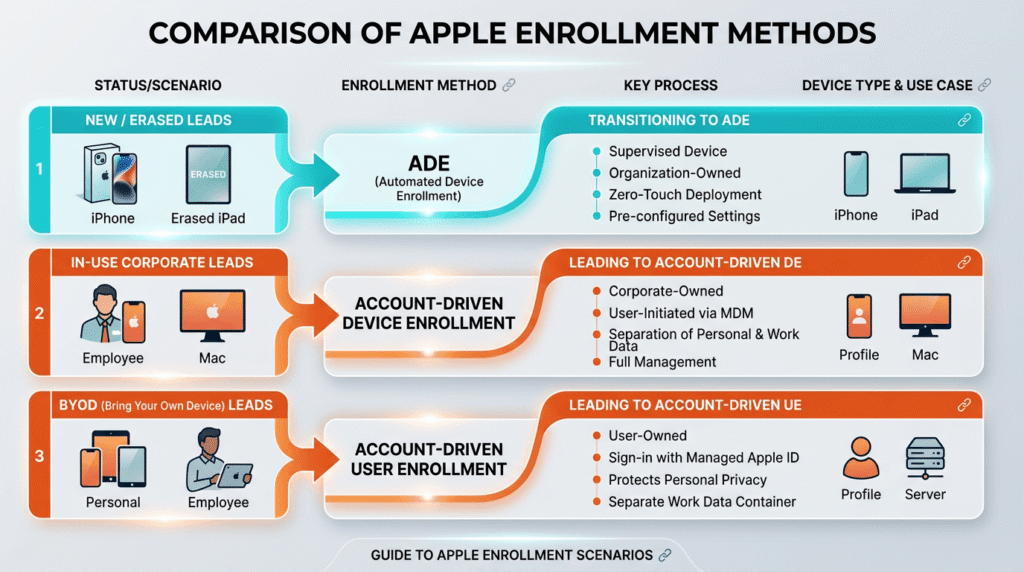
Apple ships three enrollment methods for organizational devices, and choosing the right one for each scenario matters. The names are similar, and the outcomes are meaningfully different.
| Method | Best for | Supervision | Data separation | Notes |
|---|---|---|---|---|
| Automated Device Enrollment (ADE) | New or erased corporate devices | Yes | No | Highest control, device-focused, cannot be removed by user |
| Account-driven Device Enrollment | Corporate devices being enrolled in an ongoing way | Available | Available | Newer, uses Managed Apple Account, supports data separation on macOS 11+ |
| Account-driven User Enrollment | BYOD, personally owned devices | No | Yes | Corporate work container only, personal side untouched |
The critical caveat: ADE does not provide data separation regardless of Blueprint assignment. Data separation is a feature of the Account-driven methods, and using ADE on a device that also carries personal content means that personal content is subject to management as well. That is fine for corporate-only devices. It is not fine for BYOD.
Beyond ADE: what Apple Business plus MDM enable together
ADE is the enrollment mechanism. The value of Apple Business plus MDM extends well beyond enrollment.
Blueprints
Blueprints are the 2026 configuration primitive in Apple Business. A Blueprint bundles Setup Assistant behavior, initial apps, enforced policies, and assigned services into a named configuration that IT applies to users or devices. Blueprints simplify what used to be a scattered set of MDM policies into a single assignable unit, and they make configuration reproducible across new devices.
Apps and Books
Apps and Books, formerly the Volume Purchase Program (VPP), is Apple Business’s app licensing and distribution mechanism. IT buys App Store app licenses at the organization level, and the MDM then assigns them to devices or users. Custom Apps are App Store apps distributed privately to specified organizations, useful for internal apps that never go public. Licenses reallocate as employees join and leave.
Managed Apple Accounts
Managed Apple Accounts are the identity layer for Apple Business deployments. Each employee gets a Managed Apple Account tied to the organization, distinct from any personal Apple Account. Managed Apple Accounts are how the organization controls work iCloud storage, cross-device Continuity, sign-in on the Apple Business app, and other identity-scoped features.
Declarative Device Management (DDM)
Apple has been progressively shifting from the older MDM command model (where the MDM sends commands and polls the device for compliance) to Declarative Device Management, in which the device maintains its own declarations and proactively reports state changes. DDM is faster and more reliable under variable network conditions, and it reduces polling overhead for large fleets. Every serious Apple MDM in 2026 supports DDM, and fully configured DDM configurations are increasingly the recommended path.
Highly Restricted Networks mode
For organizations deploying iPhone and iPad on air-gapped or Highly Restricted Networks, Apple offers a mode (iOS 17+, iPadOS 17+) that activates during ADE and works with a cross-domain solution to manage devices without traditional Apple activation server connectivity. This is a niche capability, mainly relevant to defense and highly regulated environments.
Common Apple Business Plus MDM pitfalls
Certain mistakes recur across Apple Business deployments. Knowing them prevents most of them.
Buying devices outside the linked channel. Devices that come through consumer retail, an unlinked reseller, or a marketplace do not automatically enter Apple Business. The fix is Apple Configurator, which is slower and requires wiping the device. Preventing the pitfall means locking procurement to linked channels.
Missing the annual server token renewal. Apple Business server tokens expire after one year. If the renewal calendar reminder is missed, new device enrollments start failing silently, and existing enrolled devices stay enrolled but cannot receive new enrollment configurations. Set the renewal reminder at day 300 of the token’s life.
Not planning reseller ID linkage. Organizations frequently buy through a reseller for months before linking the reseller’s Customer Number in Apple Business, then wonder why devices are not appearing. The linkage has to happen in Apple Business under Settings → Device Management Settings before new devices flow through automatically.
Trying to add existing devices without erasing. ADE requires the device to be new or erased. Adding an existing device through Apple Configurator wipes it. If the user’s data has not been backed up first, this is data loss. The workflow has to include a backup or migration step.
Confusing ADE supervision with data separation. ADE produces supervision, which is elevated management, but it does not produce data separation. If the deployment includes any personal content on the device, ADE is not the right method. Use Account-driven Device Enrollment or Account-driven User Enrollment for scenarios that need data separation.
Which MDM works with Apple Business Manager?
Every major Apple MDM works with Apple Business Manager, because Apple Business exposes the same enrollment APIs to every MDM. The choice of MDM is downstream of the Apple Business decision.
| Fleet profile | Recommended MDM |
|---|---|
| Apple-only, small | Apple Business Essentials was the built-in option; with Apple Business consolidation, look at Jamf Now, Mosyle, or Kandji Free tiers |
| Apple-only, mid-market or larger | Jamf Pro, Kandji, Mosyle Business, Addigy |
| Regulated Apple fleet (HIPAA, FedRAMP) | Jamf Pro, Kandji Enterprise, or specialist deployment with BAA and compliance mapping |
| Mixed fleet (Apple plus Windows plus Android) | Cross-platform MDM such as Bento MDM, Microsoft Intune, or Hexnode |
| Microsoft-centric mid-market | Microsoft Intune with Apple Business integration |
| Apple School (education) | Apple School Manager plus Jamf School, Mosyle Manager, or ClassLink |
Cross-platform MDMs, including Bento MDM, connect to Apple Business via the same MDM server token mechanism used by all Apple MDMs. The differentiation at the Apple layer is in the depth of Apple-specific configuration (Blueprints, DDM adoption, Apps and Books workflow quality, Managed Apple Account handling), day-zero support for new macOS and iOS versions, and how cleanly the console handles Apple naming and workflow. The correct evaluation is a hands-on pilot with real Apple hardware, not a paper feature comparison.
Frequently asked questions
No. Apple Business Manager (now Apple Business) is a free Apple portal that manages device ownership, app licensing, and Managed Apple Accounts. It is not an MDM by itself. It works alongside an MDM (Jamf, Kandji, Mosyle, Microsoft Intune, Bento MDM, or others) that provides the actual device management, policy enforcement, and reporting. Apple Business is the layer that makes an MDM effective on Apple hardware. Every organization deploying Apple at scale needs both.
Apple Business (formerly Apple Business Manager) is free. The MDM that works with it is a separate paid service, unless you use a free tier from a vendor like Jamf Now or Mosyle. Apple Business Essentials was Apple’s own subscription MDM built on top of Apple Business Manager. With the April 2026 Apple Business consolidation, its functionality is now available directly through Apple Business, and organizations should check current pricing on Apple’s site.
Yes, technically, but you lose most of the value. Apple Business without an MDM lets you buy app licenses through Apps and Books, create Managed Apple Accounts, and see the devices your organization owns. You cannot configure or enforce anything on those devices without an MDM. Automated Device Enrollment does not function without an MDM server on the receiving end, because the enrollment target is the MDM. Almost every organization deploying Apple at scale pairs Apple Business with an MDM.
The “MDM key” phrase usually refers to the MDM server token in Apple Business. To download it: sign in to Apple Business with an Administrator or Device Enrollment Manager role, go to Settings → MDM Servers (or Device Management Settings depending on the current console version), select the relevant MDM server profile, and download the server token as a .p7m file. Upload this token to the MDM’s Apple Business connection settings. Tokens expire after one year and must be renewed.
DEP (Device Enrollment Program) is the former name for Automated Device Enrollment. Apple renamed DEP to Automated Device Enrollment in 2019. Some legacy documentation and vendor UIs still use “DEP” or “Apple DEP”, but the current service is ADE. There is no functional difference; the name changed.
Three options depending on where the device came from. If purchased through an Apple Authorized Reseller or a carrier linked to your organization, the device appears automatically after purchase; no action is needed. If bought outside a linked channel (Apple Store retail, marketplace, gift, prior ownership), use Apple Configurator on a Mac to add the device: plug it in, open Apple Configurator, select the device, choose Prepare → Automated Device Enrollment, and follow the wizard. The device will be erased and enrolled during the process. If you are procuring at scale, link your reseller’s Customer Number in Apple Business under Settings → Device Management Settings so future purchases flow automatically.
Yes, but the device must be added to Apple Business (via Apple Configurator if purchased outside a linked channel) and erased. Once added and erased, ADE runs on the next Setup Assistant. The alternative for existing devices you cannot erase is user-approved enrollment or Account-driven Device Enrollment, both of which install management without a factory reset but produce a lower level of supervision than ADE.


Related Articles


